Wednesday, 6 October 2021

Squarespace tutorial


Beginner Tutorial

This tutorial will help newcomers to the Squarespace Developer Platform learn by doing. Check out this guide for more information on Squarespace Developer Platform functionality to see if it fits your needs.

Introduction

Let's get started working on the Squarespace Developer Platform. In this tutorial, we'll be enabling the Developer Platform on your website, setting up your development workflow using Git, and making your first edits to the template code!

To follow this tutorial, you should understand the fundamentals of HTML, CSS, JavaScript, and Git. If you aren't familiar with writing code, here's a list of recommended learning resources. Check out this guide for more information on the Developer Platform's functionality and to see if it fits your needs.

Getting Started

Template File Structure

Part 1 - Making Changes

Part 2 - Displaying Dynamic Content

Part 3 - Adding Pages

Part 4 - Making a Navigation

Part 5 - Collection Overview

Part 6 - Creating a Blog Collection


Getting Started

In this tutorial, you'll be using Git to publish your template code to the Squarespace servers. Squarespace creates a hosted Git repository for each website, so that you can publish your code with git push.

Git isn't the only option, you can use SFTP as well. However Git has some obvious benefits when working with code. Git can make cloning a template to your computer easier, and it can be a great way to manage the problems that occur when multiple people are editing code on one site. If you're unfamiliar with Git, visit their documentation.

To get started with a Squarespace website using git, follow these steps:

Create a site from the Beginner Tutorial Template

Now that the background for this tutorial is established, start by visiting the Beginner Tutorial Template demo site and clicking Create a Site Like This.

This demo will explore the process of creating a template on the Developer Platform.

Enable Developer Mode

Now that you have a site, the next step is to enable Developer Mode.

  1. In the Home Menu, click Settings, click Advanced, and then click Developer Mode.
  2. Switch the toggle in the panel to On.
  3. Read the warning message and click Yes, I understand to confirm.

Note: When you enable Developer Mode, Squarespace forks your template to create an identical codebase that you can edit. You'll still see all content and Style Editor options while in Developer Mode. Read more about what changes you can expect while using the Developer Platform here.

Developer Toggle

Accessing your template files

Once Developer Mode is enabled, clone your template files via Git. Access your site's unique Git URL in the The Developer Mode panel. Below is an example of what the Git clone command will look like:

git clone https://your-website.squarespace.com/template.git

After cloning the template files, open the 'template' folder in a text editor you like. Sublime Text and Atom are popular options.

Note: You can also access template files via SFTP.

Template File Structure Overviews

Each Squarespace template is made up of several template files. Every template must have, at a minimum, a region file (usually named site.region) and a template configuration file named template.conf.

The .region File

A region file defines the layout of template pages. Typically, this file is used as the global site wrapper template, containing the site header, footer, and sidebars. Every template must have at least one .region file. More advanced templates can have multiple .region files describing the different layouts and layout sections (header, footer, sidebar etc.). Typically the 'site.region' file is used as the default layout. Region files are composed of standard HTML and JSON-T to render dynamic content.

The template.conf File

The template.conf file uses JSON to define the configuration of essential elements within the template. This is where you can:

  • Name your template
  • Specify layouts
  • Add navigation sections
  • Specify stylesheets to be rolled up into site.css and more.

Other Template Files

Depending on how a particular template was designed, it may or may not include all the folders listed below. Our tutorial template will begin with just a template.conf, site.region and some basic styles in a base.less file. Missing folders can be added using SFTP or Git:

  • /assets static design assets — example: images, fonts and icons
  • /blocks block files — JSON-T "partials" — reusable code that can be included elsewhere in your JSON-T. Example navigation.block
  • /collections collection files — [collection].list, [collection].item, [collection].conf
  • /pages static page files — [static].page, [static].page.conf
  • /scripts JavaScript files — site.js
  • /styles stylesheet files — styles.css, styles.less
  • [root] site-wide files — site.region, template.conf

For a more in-depth explanation of these template directories and their purpose, take a look at our full Template Overview.

Once you've accessed and downloaded your template files, the next step is to make a first change to template code.

Part 1 - Making Changes

Before we get to the fun stuff, let's make a small change to the site.region file. This will show you how to publish code to Squarespace, and familiarize you with the workflow. Locate the tag within the site.region file and insert the following snippet directly after the opening of your body tag:

<p>Hello, World!</p>

Next, git commit and git push it to your live site. Once you've pushed these changes, refresh your browser to see the change on your live site. It should look something like this:

Hello World

Now that we've successfully made our first modification with the Developer Platform, we'll apply this new knowledge in more advanced ways in Part 2.

Part 2 - Displaying Dynamic Content

In part 1 you made a simple change to your website's HTML. You can add any static HTML, CSS or JavaScript code to your Squarespace website. However, the power of the Squarespace Developer Platform is it's ability to display dynamic content. In other words, content from the Squarespace online editor.

To display dynamic content, you'll need to use JSON-T, the template language used on the Squarespace platform. Let's try adding some JSON-T to your template.

To begin, locate your site header in the site.region file. It should look like this:

<header class="header">
  <h1 class="site-title">
    <a href="/">
      Developer Platform Beginner Tutorial
    </a>
  </h1>
</header>

Replace your current header with this new snippet:

<header class="header">
  <h1 class="site-title" data-content-field="site-title">
    <a href="/">
      {website.siteTitle}
    </a>
  </h1>
</header>

In this new snippet, we're using JSON-T to insert the site title from the Squarespace Content Management System (CMS). The JSON-T within the HTML code is denoted by curly braces. ({})

Now that we've updated the code for our site title, let's replace the title text with content from the Squarespace online editor.

Logo and Title

Notice that as you edit the site title, the new title will update on your website.

JSON-T can be used to insert several different data values from the CMS, such as the text of a blog post a business' address, or images from a gallery. This is called the context. To view the context for a page, add ?format=json-pretty to the end of the URL. For example:

http://your-website.squarespace.com/?format=json-pretty

This will output the context using JavaScript Object Notation (JSON). You can see that the siteTitle is in the website section of the JSON data:

"website": {
  ...
    "siteTitle" : "Developer Platform Beginner Tutorial",
  ...
}

Note: For more information about the JSON context, visit this guide. For more information on JSON-T variables and directives, visit this guide. To learn how to add a site title via the CMS, visit the Adding a site title help guide.

Part 3 - Adding Pages

So far you've made a change to your template with git, and added some dynamic content to your website with JSON-T. However, this website is still very basic. Let's add some pages!

To start, create a Regular Page. You can do this through the Pages panel in the online editor, click the + icon to create a Regular Page on your site. To learn more, visit Adding pages to your navigation.

Unfortunately, adding a page doesn't do much yet. That's because we haven't yet added the JSON-T necessary to make the page editable. In order to do this, an update to the site.region file is required. Just like in Part 2, you can use JSON-T to insert content from the CMS, making the page dynamic.

To do this, replace the <main class="content"></main> tags with the following snippet:

<main class="content">
  <section id="page" role="main" data-content-field="main-content">
    {squarespace.main-content}
  </section>
</main>

After you've made this change, commit and push your code to the live site. Now when you refresh your home page in the Squarespace editor, you should be able to add images and text to the page.

Deep Dive: In the above snippet you've added the JSON-T variable {squarespace.main-content} that displays the page content from the CMS. Squarespace also needs load an editor interface, letting users drag-and-drop text and images onto the page. The <section data-content-field="main-content"> tag tells Squarespace where to put the editor interface.

Part 4 - Making a Navigation

Let's say you've added a few pages to your website. How will visitors find those pages? In this section we'll add a navigation so visitors can discover and navigate through your site. This requires three parts:

  1. Changes to your template.conf file to configure the navigation,
  2. A navigation.block file that contains the JSON-T for rendering the navigation menu, and
  3. A <squarespace:navigation> tag in your site.region file to place the navigation onto the page.

Configuring your Navigation

Navigation sections are defined in the template.conf file. The navigations key in the template.conf file defines the Navigation areas available in the Pages panel of the interface. Currently, you can only add pages to the Not Linked section. Let's create a new navigation section by editing the template.conf file. To do so, replace the contents of your template.conf with the snippet below:

{
  "name" : "Developer Platform Beginner Tutorial",
  "author" : "Squarespace",
  "navigations" : [
  {
    "title" : "Main Navigation",
    "name" : "mainNav"
  }],
  "layouts" : {
    "default" : {
      "name" : "Default",
      "regions" : [ "site" ]
    }
  },
  "stylesheets": []
}

This snippet adds a new navigation titled "Main Navigation". Once you push this update to your template.conf, you'll see that the Pages panel now has a "Main Navigation" section for pages and collections.

Rendering the Navigation

Once you add a page to your new navigation area in the Pages panel, you may notice that this navigation doesn't render anywhere on your site. This is because you haven't added the JSON-T required to display the Main Navigation menu on the page.

To do this, you need to create a template for the navigation using a .block file. If you're familiar with other templating languages, you can think of a .block file like a "partial". A .block file can contain any kind of code used elsewhere in your template, most commonly HTML and JSON-T. For an in-depth explanation of .block files, visit this Developer Platform documentation article.

To display the Main Navigation on your site create a file titled "navigation.block" and place it in your /blocks directory. If you don't see a blocks directory, you can create one now. Once you've created your navigation.block file, drop in the following snippet of HTML and JSON-T:

<nav>
  <ul>

    {.repeated section items}
    <li class="{.section active} active-link{.end}">

      {.section collection}
        <a href="{fullUrl}">{navigationTitle}</a>
      {.end}

      {.section externalLink}
        <a href="{url}"{.section newWindow} target="_blank"{.end}>{title}</a>
      {.end}

    </li>
    {.end}

  </ul>
</nav>

This snippet contains more advanced JSON-T than we've seen so far in this tutorial. It iterates over a list of items using a repeated section. It also uses .sections to optionally display HTML if a given key is present in the context. For a more complete discussion, see our documentation on JSON-T directives.

Placing the Navigation

You still need to insert the navigation.block into your site.region. This requires the use of a new kind of tag, Squarespace navigation tag:

<squarespace:navigation navigationId="mainNav" template="navigation" />

The Squarespace navigation tag tells the Squarespace platform which navigation ID corresponds with which navigation .block file. The navigation ID must match the "name" of one of the navigations defined in template.conf. The template must match the filename of a .block template in the /blocks folder.

Deep Dive: Squarespace navigation tags use a different syntax than the rest of JSON-T. They use a custom HTML tag with a "squarespace:" prefix. Squarespace tags are used to access data that's not part of the current page's context. For example, the list of links from a navigation. Another example is the <squarespace:query> tag, which lets you access search results. See more in the Squarespace Tags section of the Developer Documentation.

Add the Squarespace navigation tag just above the <main class="content"> in your site.region file. Once you've done this, push your new navigation.block file and your updated site.region file to your site. Refresh your site and drag a page into the Main Navigation section of the Pages panel.

You should now see your page listed in the navigation menu at the top of your site. When you add new pages, they should also show up in your site's navigation menu.

Congratulations! You now have a multi-page website that you can edit in the with the Squarespace editor! In the remaining parts of this tutorial you'll be adding a blog to your website.

Part 5 - Collection Overview

Before we add a blog to your website, let's step back and talk about how blogs, galleries and other sets of data in Squarespace are implemented. Squarespace exposes a single data structure that powers most of the content on a website: the collection. Collections are lists of data that you can display on your website in various ways. For example, you can present a collection all on a single page, or show each item on its own page.

All collections in Squarespace are defined in the template by adding three files; a .conf, .list and .item file within the /collections directory. While collection filenames can have any title, a collection must use the same name for all its files. For example, foo.conf, foo.list, and foo.item would correspond to the "foo" collection.

The Collection .conf File

The .conf file tells the Squarespace platform how each collection is configured. It's a JSON file containing several keys and values that configure the type of collection that you'd like to create.

title: The name of the collection as it will appear in the "Add New Page" dialog.

ordering: The method of ordering for the collection. Available options: chronological, user-orderable, calendar.

addText: Specifies the text used in the "add" button in the Squarespace interface. It is also used in empty collection message when a collection does not contain any items.

acceptTypes: Specifies the post types allowed in this collection. Available: text, image, video.

For a full explanation of collections, visit the Collections guide in the Developer Platform Documentation.

Collection .list and .item Files

While a collection's .conf file uses JSON, the .list file is written with HTML and JSON-T. The .list file defines the default view of your collection and shows all posts in that collection. For example, blog.list will display all posts as a chronological list on a single page.

Like the .list file, the .item file is written using HTML and JSON-T and sets up the structure for how a single post will look.

When you create a collection, it adds a new interface to the editor that you can use to add and edit items. Collections can be used to manage and display any kind of structured data on your website.

Part 6 - Creating a Blog Collection

To begin, create a folder called "collections" in your root directory.

Now, create a file within that folder and name it "blog.conf." Add the following code snippet to that file:

{
  "title" : "Blog",
  "ordering" : "chronological",
  "addText" : "Add Post",
  "acceptTypes" : [ "text" ]
}

Now that you have defined the configuration, create .list and .item files to define the structure. Create a file called "blog.list" and add the following code snippet:

{.repeated section items}

  <!--WRAPPER-->

  <article id="post-{id}" class="{@|item-classes}" data-item-id="{id}">

    <!--POST TILE-->

    <h1 class="title" data-content-field="title">
      {.passthrough?}
        <a href="{sourceUrl}" target="_blank">{title}</a>
      {.or}
        <a href="{fullUrl}">{title}</a>
      {.end}
    </h1>

    <!--EXCERPT OR BODY-->

    {.if excerpt}
      {excerpt}
      <a class="link" href="{fullUrl}">Read More</a>
    {.or}

    <!--MAIN CONTENT-->
      {body}

    {.end}

  </article>

{.or}
  No blog posts yet.
{.end}

And finally, create a file titled "blog.item" and add this code to it:

{.section item}

  <!--WRAPPER-->

  <article id="post-{id}" class="{@|item-classes}" data-item-id="{id}">

    <!--POST TILE-->

    <h1 class="title" data-content-field="title">
      {.passthrough?}
        <a href="{sourceUrl}" target="_blank">{title}</a>
      {.or}
        <a href="{fullUrl}">{title}</a>
      {.end}
    </h1>

    <!--MAIN CONTENT-->

    {body}

  </article>

{.end}

There's a lot of new JSON-T here, which you can investigate on your own. Refer to the Template Language section of the Squarespace Developer Platform documentation for reference.

Now when you go to add a page, you'll see the option to add a blog collection:

Collection Option

Try adding a blog, and then adding a new post. When you're done, the Blog collection should look like this:

Blog Collection

What's Next?

In this tutorial, you accessed your template code, made your first modifications, used JSON-T to dynamically change your site title, made a navigation and created a blog. Now that you've learned the basics of the Developer Platform, you can take a closer look at our full Developer Platform Documentation and customize your template further. If you have questions, try posting them in the Answers forum where other members of the Squarespace community can help you.

Squarespace vs WordPress | Which Is Better in 2021?

 Looking to create a stunning website? Then it’s no surprise you’re choosing between Squarespace and WordPress.

Squarespace is a website builder with the best template designs on the market. It’s easier to use than WordPress, and takes care of the techy stuff for you. 

WordPress is a content management system that offers tons of power and customization if you’re comfortable with sourcing your own web hosting and learning some code.

After more than a decade of using and comparing the top website building platforms out there, we know the differences between Squarespace and WordPress inside and out. Read on for our full breakdown, and to find out which of these two is best for you!

Who Are Squarespace and WordPress Aimed At?

Squarespace is a website builder, while WordPress is a content management system (CMS). Here’s what that means:

  • Website builders are all-in-one tools that include everything you need to create a website, from designer templates to hosting. You don’t have to know anything about code, and your whole site can be managed in one place. This makes Squarespace the more beginner-friendly platform.
  • Content management systems are more advanced software, made for handling larger websites with a lot of data. You can fully customize these websites, but only if you know how to code. You’ll also have to find a hosting provider yourself, but you’ll end up with more storage space and scalability. This makes WordPress the more powerful platform. 
There are actually two versions of WordPress out there! In this comparison, we’re talking about WordPress.org, which is an open source platform and is what most people are referring to when they say “WordPress.” WordPress.org is different from WordPress.com, which is designed more like a website builder, but lacks a lot of power and resources.
squarespace logo

When to Use Squarespace Instead of WordPress

  • You want a stunning website without hassle or fuss
  • You need a site up fairly quickly
  • You need an easy-to-manage site
  • You want transparent, set pricing
  • You’re not confident with code
  • You want all-in-one convenience
  • You want to focus on your goals, rather than on maintenance
  • You like the security of dedicated, 24/7 support

wordpress.com logo

When to Use WordPress Instead of Squarespace

  • You’re building a fairly large website
  • You want complete customization
  • You take a very hands-on approach to running your site
  • You’re fine with coding, or willing to learn
  • You want really powerful blogging tools
  • You don’t need to get your site live super quickly
  • You’re not put off by technical tasks such as hosting, security, or updates
  •  You like to choose exactly which tools and features your site needs

Squarespace Offer Code
Use Offer Code "WBE" on Checkout for 10% Discount
Save 10% Off Any Squarespace Plan With Code: WBE

We have an exclusive Squarespace offer code for our readers that will save you 10% on the cost of any Squarespace plan! To redeem this discount, simply enter the offer code: WBE at the checkout and enjoy!

Save Money With Squarespace

Enter the code WBE at checkout to save 10% on any Squarespace plan!

Further Information

Ease of Use

squarespace logo
The Winner

Ease of Use: Squarespace is Better

With Squarespace, you can easily modify your design, while WordPress requires coding. This makes Squarespace much more beginner-friendly, as you can simply drag and drop features onto your pages.

Squarespace: Easier but Less Flexible

Squarespace is easier to use than WordPress because:

  • It requires no coding skills
  • You can preview changes in real-time as you make them
  • It has a drag-and-drop template editor

User Review: Brittany Herzberg, Brittany Herzberg Massage Therapy

brittany herzberg“I’ve loved how easy Squarespace is to use and modify. It was quite easy for me to pick a template and enter in the information I thought was critical.
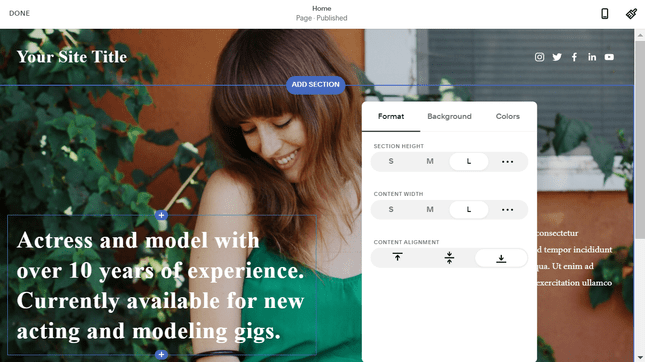
When I first got my site going, a friend helped me create it. He suggested Squarespace and a few other options, but Squarespace seemed the most intuitive to me, and it had template options I felt I could be proud of.”

By drag-and-drop, we mean you can move different elements (like text boxes and images) around on the page to customize the layout. Squarespace’s drag-and-drop editor goes by section, so you can move different elements around within a block on the page.

wordpress vs squarespace ease of use editor
Squarespace lets you drag elements around within each section block.

This is called “what you see is what you get” editing. It makes it super easy to make changes, because you’re seeing exactly what visitors will be seeing once your site is live.

Whenever we’ve used Squarespace in the past, we’ve been impressed by its stylish templates and fast setup.

Top Tip: Less flexibility isn’t always a bad thing! Squarespace’s section-based editor makes it nearly impossible to position your text or images at a bad angle, and you’ll get to choose between multiple color palettes that are predesigned to match your theme. Basically, it’s extremely hard to make a design faux pas with Squarespace!

WordPress: Harder but More Customizable

WordPress is harder to use than Squarespace because:

  • Code and third-party plugins are often needed to customize pages
  • You do your editing in the backend, meaning you can’t see your changes as you make them
squarespace vs wordpress editor
When you add and edit elements in WordPress, you can’t see how your changes will look while you make them.

Making changes in the backend is like flipping switches backstage. You can walk around to the front to see which lights you’ve turned on, then go back behind the curtain to change those settings.

This can be really disorienting for a beginner. But the payoff is that WordPress is very customizable, because editing the actual code of your site opens up a whole new world of possibilities – you won’t have to stay within the confines of a premade template.

If you’ve got money rather than coding skills, you can hire a developer to help you at around $100 per hour. This will raise the cost of your website, but reduce the amount of tech you’ll have to deal with yourself.

Design

squarespace logo
The Winner

Design: Squarespace is Better

Squarespace templates are consistently higher quality than WordPress templates. And while WordPress offers tons of customization, you’ll have to be pretty comfortable with code in order to really make a WordPress template shine.

Choosing a Template

If you want a website builder but don’t want to compromise on design, don’t worry: Squarespace has the best quality designs of any website builder on the market. Its designer templates are clean, modern, and professional. You’ve got 113 to choose from, covering a variety of categories from online stores to blogs.

squarespace ecommerce etsy alternative
Squarespace has the best quality designs on the market, giving you a stunning storefront for your products

WordPress has more templates (also called themes) than Squarespace – in fact, it has thousands – but they’re not all as expertly designed as Squarespace’s. In other words, you’ll often have to do a lot more work yourself to make the theme into something stunning!

Top Tip: Anyone can create and upload a WordPress theme, so it’s best to be picky. There’s even a chance you could download a theme with malicious code in it, which would then open up your site to security breaches.

So keep watch for faulty WordPress themes, and make sure any you’re downloading are safe, secure, and reliable.

Customizing Your Template

User Review: Kyle Fleming, Fleming Music Therapy

kyle fleming“What I like about Squarespace is that much of the design process is intuitive. Once I found a template that I liked and decided on an overall layout for my website, it was easy for me – someone who has never designed or created a website before – to plug in and rearrange the elements of my page (photos, text, etc.) in a way that I felt best expressed who I was, and what I wanted people to feel about my practice.”
Squarespace’s drag-and-drop editor lets you easily add galleries, slideshows, video backgrounds, and more with just a few clicks. And if you’re feeling a little more advanced, you can use the built-in custom CSS editor, which lets you apply custom code to your template. With Squarespace, coding is an option, whereas it’s almost mandatory with WordPress.

wordpress unique websites
WordPress lets you create a totally unique website through ultimate customization and flexible designs.

Of course, WordPress has quite rightly made a name for itself in this area, giving you ultimate control over your website. It may not be quite as easy as drag-and-drop, but there are no limits on what you can change in your template.

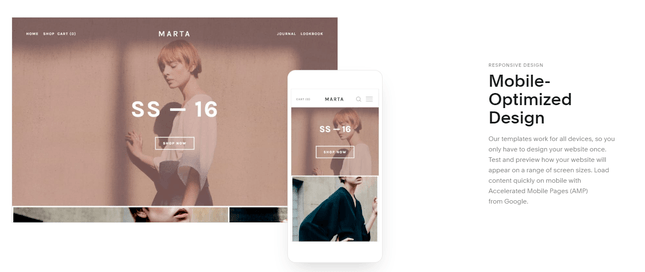
One of the most important parts of picking a template is making sure it looks great on all devices. When you’ve put so much hard work into giving it that wow factor, you don’t want your site to be the ugly duckling of the mobile world. Mobile responsive templates make sure your website still looks stunning on, you guessed it, mobile devices.

All of Squarespace’s templates are fully mobile optimized. Every template design has a mobile view automatically built in, which makes sure your website looks great on all devices. This even includes any emails you send.

squarespace mobile optimization

WordPress is slightly different. Because there are so many themes to choose from, there are different levels of quality. Some themes will be older than others, meaning they don’t have mobile optimization. In a world where over 50% of traffic comes from mobile users, you’d be missing out by choosing an outdated theme.

One way of ensuring a better experience for your mobile users is to enable AMP (Accelerated Mobile Pages). This just creates lightweight, simplified versions of your pages, meaning they load much faster on mobile devices. Not only that, Google actually works with AMP to prioritize these mobile-friendly pages in search results.

You can quickly and easily enable AMP on both Squarespace and WordPress. All Squarespace pages are automatically ready for you to enable AMP. With WordPress, you just need to install an AMP plugin, and then you’ll be good to go!

Further Information

Pricing and Value for Money

wordpress.com logo
The Winner

Pricing: WordPress is Better

Squarespace has four pricing plans, ranging from $12 to $40 per month. These prices cover everything you’ll need to get a site live. WordPress itself is free, but you can’t really get a site live without paying for additional services like web hosting. You can pick and choose some of these additional costs, though, which gives WordPress pricing some really nice flexibility.

Squarespace Pricing

Squarespace offers 4 premium pricing plans, ranging from $12-40 per month (billed yearly).

If you sign up to an annual plan, you can save between 13% and 25% compared to a monthly plan.

Squarespace Pricing Plans Monthly Plan ($/month) Annual Plan ($/month) Savings (%)
Personal $16 $12 25%
Business $26 $18 31%
Basic (ecommerce) $30 $26 13%
Advanced (ecommerce) $46 $40 13%

Here’s what you need to know about each plan:

  • The Personal plan is the cheapest, and gives you everything you need to create a stylish website
  • The Business plan supports basic ecommerce – for example, if you just want to sell a few items on the side – and comes with more marketing features than the personal plan
  • The Basic Commerce plan is specifically aimed at online stores selling more than a few products
  • The Advanced Commerce plan is built for growing an online store, and includes plenty of powerful ecommerce tools
Top Tip: All of Squarespace’s plans come with a 14-day free trial, so you can give it a go before signing up to a premium plan.
Squarespace Offer Code
Use Offer Code "WBE" on Checkout for 10% Discount

Save 10% on Any Squarespace Plan!

We have an exclusive offer code which can save you 10% on your first purchase or upgrade with Squarespace! Just enter WBE at the checkout to save on the cost of any plan.

WordPress Pricing

WordPress is a free platform, but you’ll still need to get your wallet out to help cover other aspects of your site. The most important cost is web hosting. 

WordPress will require you to sort out your own hosting, which generally costs around $7 per month (roughly $84 per year). WordPress recommends using either Bluehost, DreamHost or SiteGround (click to read our reviews of each host). Bluehost is our top-rated WordPress hosting provider, scoring an impressive 4.8/5.

wordpress recommended hosting
You’ll need to pay for your own hosting for your WordPress site. Bluehost, DreamHost and SiteGround are the top three recommended by WordPress.

These are the other common costs to anticipate when starting a WordPress site:

  • Themes: While some themes are free, for top quality, it’s worth thinking about investing in paid themes ($30-$80)
  • Plugins: WordPress plugins can add all kinds of additional features to your website, from email marketing to ecommerce checkout tools ($15-$50)
  • Domain names: Squarespace gives you a free domain for your first year, but with WordPress, you’ll have to purchase your own domain name from a third-party registrar like Domain.com ($10-$12 per year), or pick a hosting provider that offers a free domain for your first year (like Bluehost)
  • Developer costs: If you’re building a large and/or complex website, you may even want to hire a developer, which could end up costing thousands of dollars

Because a WordPress site has so many moving parts, it’s hard to give a definitive answer to how much it really costs. The good news is that this model is very flexible, so you can choose cheaper themes and plugins in order to stay within your budget.

All in all, the estimates we have provided for the cost of setting up a WordPress site are at the lower end.

According to Elegant Themes, a popular WordPress theme developer, setting up and running a WordPress site (without hiring any external help) could cost you anything from $200 to $1,000+.

The main costs are attached to purchasing premium themes and plugins. Premium themes typically range from $50-200 a month, while premium plugins can vary from $15-200.

A standard domain costs roughly $12 per year. Hosting is very dependent on the provider you choose, but on average, hosting prices tend to fall between $10 and $30 a month.

Note that this does not factor in ongoing costs; if you need to hire someone to help you make modifications to your WordPress site or to help troubleshoot, this will inflate the cost even more.

Elegant Themes also estimated that a custom WordPress theme will cost you around $3,000-6,000 (for design and development), while a custom WordPress website will be around $6,000-15,000 (for design and development plus custom plugins).  You can see their estimates here.

Further Information

  • Read our Squarespace Pricing Review for more details on this builder’s plans
  • Read our WordPress Pricing Review to learn more about how to budget for your WordPress site
  • We recommend Bluehost for a great value WordPress host – check out our Bluehost Pricing Review for more details

SEO

The Winner

SEO: It’s a Tie!

WordPress has more powerful SEO, but Squarespace has more built-in features. By installing SEO plugins on WordPress, you can call on powerful tools like Yoast. But if you want built-in features and much less work, then Squarespace is the better choice.
You’ve perfected your stunning designs. You’ve got the features and apps of your website running like clockwork. Now all you need is an admiring audience to appreciate all that hard work. Time to become an SEO pro!

SEO stands for Search Engine Optimization, and this is what gets you found in Google search results. If your website has bad SEO, it could stay stuck in the 100th results page forever. With amazing SEO, you could get to number one.

But who wakes up one morning ready to be an SEO expert? That’s where your chosen builder can help you.

Squarespace SEO

Squarespace has built-in SEO tools, including:

  • Customizable meta titles and descriptions: These are the title and paragraph that describe a page in Google search results
  • Customizable URLs: You can clean up your URLs to make them more readable to search engines (for example, squarespace.com/pricing is a clean and simple URL!)
  • Image alt text: Alt text just describes what an image is showing, and it makes your website more accessible because anyone using a screen reading tool won’t have to wonder what each image shows. Alt text also helps search engines understand the purpose and relevance of each image.
  • Page redirects: If you change a page’s URL and someone tries to visit the old one, Squarespace will let you automatically send them to the new one!
  • Automatic sitemaps: A sitemap is a list of the different pages on your site, designed to help search engines figure out how they’re all related. Squarespaces generates one of these for you automatically.

All of these tools are totally integrated, meaning you won’t need to download any extra plugins to access them.

squarespace seo
Squarespace provides you with built-in SEO tools to boost your site’s growth and get you found online, for all the right reasons!

WordPress SEO

WordPress websites come with some built-in SEO features, but most of the platform’s impressive power comes from its arsenal of SEO plugins – which you’ll have to install yourself.

User Review: Douglas Liantonio, Gravy

“I like WordPress because there are more plugins to use for SEO, website speed, and other optimizations. If you are technical you can jump into the code real quick, and if there is a cosmetic change to make, you can check the page as a front view and then make those changes. Squarespace is great, but it’s all drag-and-drop, and doesn’t let you technically change things by code.”

wordpress seo plugins
WordPress has highly rated SEO plugins to give your website even better SEO tools and improve your site’s chances of being found in search results

For example, the Yoast SEO plugin has a five star rating from over 25,000 reviews, and has over 5 million active installations. Yoast guides you through the best SEO practices, from creating cornerstone content to adding keywords and meta descriptions.

Further Information

Features

squarespace logo
The Winner

Features: Squarespace is Better

Squarespace has high-quality features included in its website editor. WordPress has some useful features built-in, but to make the most of its (very impressive) potential, you’ll have to install more third-party plugins yourself.

Squarespace Features

Squarespace comes with more built-in features than WordPress. These are just a few of the ones we found most useful:

  • Analytics: Track website visits, traffic sources, visitor geography, and more
  • Social accounts: Import content to your site from social platforms like Instagram and Twitter
  • Social feeds: Embed feeds from your social accounts directly onto your site
  • Podcasts: Host a podcast on your Squarespace site, and publish it to Spotify or Apple Podcasts

You don’t have to install extra apps or plugins for any of these features – all you have to do is select them from your dashboard!

WordPress Features

WordPress is known for its powerful tools – the only catch is that you have to install most of them yourself. Still, you’ll get some great stuff included, such as:

  • Customizable designs
  • Publishing tools, such as scheduling
  • Password protected pages
  • Multiple contributors
  • Image editing tools
  • Comments management
  • Multilingual site options (70+ languages)

Beyond this, you’ll want to check out the seemingly endless amount of WordPress plugins to add more features to your site.

wordpress features
WordPress has a powerful set of features to set your website up for success, although it relies more on plugins than built-in tools
It’s not enough to just have loads of features – there needs to be quality as well as quantity. Squarespace updates and introduces new features every few months. This keeps current features from becoming outdated, and gives you new tools to play with when they come out. Everything you need is right there at your fingertips.

WordPress is a little different. Because you’re managing your own site, you need to check for new releases and update your website to keep up. This is really important because an outdated site is more at risk of being hacked. However, hosting providers like Bluehost carry out automatic WordPress updates for you on their tailored WordPress plans, making your life easier and keeping your website secure.

Apps and Plugins

The Winner

Apps: WordPress is Better

WordPress has a virtually limitless selection of plugins. Squarespace’s plugin options are better quality, but there are fewer to choose from.

How Do They Compare?

Think of Squarespace like a restaurant. Your food is prepared and cooked in-house. Your waiter knows the menu inside out, and is there to answer questions. You can pick and choose what you want, but all the food arrives from the Squarespace kitchen.

WordPress is more like a fancy buffet. It has dishes from different places and different kitchens. You don’t know exactly where most of these dishes were made, and some are better quality than others.

With WordPress, you have to put the dishes together yourself. This is perfect if you know which flavors work best together, but the waiter can’t answer all of your questions, because the food was made somewhere else.

Either way, you can end up with a delicious meal – it’s just a question of how you go about it!

WordPress Plugins

WordPress is an open-source platform, meaning that its codes are open for anyone to use and customize. Developers or programmers can use WordPress to create their own tools (such as templates, themes or plugins) to share for free, or sell to other WordPress users.

stephen twomeyUser Review: Stephen Twomey, Kennected

“I chose WordPress because it seemed like the most flexible option when it came to plugins. These give you the ability to include all sorts of essential features a business may want to utilize, like online shops and membership areas.”

There are tons of WordPress plugins – 55,000 and counting – covering practically every function you can imagine. You can add contact forms, open comment sections, improve your Google rankings with SEO plugins, or even use WooCommerce to sell through your WordPress site… the possibilities are endless. There are both free and paid plugins available.

wordpress plugins
WordPress has over 55,776 plugins to expand your website. You can use the search bar or sort by category.
Top Tip: Read the reviews before choosing a plugin. Because anyone can create plugins for WordPress, some plugins won’t be as top-quality as others. Some less secure plugins may unintentionally leave your site vulnerable to hackers, so it’s good to know what other users have to say about a plugin before downloading it!

Squarespace Extensions

Squarespace comes with a good selection of apps already built into your site, including tools for blogging, tracking performance, and displaying images. In other words, there’s no downloading or updating necessary on your end.

And if you do find that you need additional functionality, Squarespace has a separate app market called Squarespace Extensions. The third party apps available there are high quality, but there are only 24 to choose from.

wordpress vs squarespace extensions
Squarespace has a small, but carefully stocked, extensions store where you can find and add integrations.

Ecommerce

The Winner

Ecommerce: Squarespace is Better

Squarespace’s sales features are all built in, so you’ll be ready to start selling right away on any of its ecommerce plans. With WordPress, you’ll have to install a plugin before you start selling, but it can give you a more powerful store than Squarespace.

If you want to sell online, you can! Both Squarespace and WordPress have the tools to let you create a powerful online store. Squarespace lets you create an all-in-one store, with all your sales tools at your fingertips. WordPress relies on plugins like WooCommerce to add ecommerce to your site.

Selling with Squarespace – All-in-One

Squarespace gives you everything you need to start selling online already included, as long as you’re on the Business plan or above. All sales tools are fully integrated, meaning your online store will look totally seamless and professional. For additional shipping and tax functionalities, you can also browse the Squarespace Extensions marketplace.

squarespace ecommerce
Squarespace gives you all the ecommerce tools you need to make your store successful

The Business plan is designed for small stores, and charges a 3% transaction fee on every sale you make. You can create promotional pop-ups, sell unlimited products and accept donations, have a professional email and more.

For serious selling, you’ll need to upgrade to an ecommerce plan – you can choose from the $26 per month Basic plan, or the $40 per month Advanced plan. With these, you unlock a whole range of advanced ecommerce features, including:

  • 0% transaction fees
  • Inventory, orders, tax, and coupons
  • Label printing
  • Product listings on Instagram
  • Gift cards
  • Abandoned cart recovery

All of this is automatically included – you don’t need to install, activate, or update anything to access these features. Just upgrade to the best plan for you and start selling!

Selling with WordPress – Plugins

WooCommerce

You can create a really powerful online store on WordPress using the ecommerce plugin WooCommerce. WooCommerce is specially designed for WordPress users, to help them sell online!

wordpress plugin woocommerce
WooCommerce is an ecommerce plugin built for WordPress, which gives you the tools to build a store which suits you

Because it was built for WordPress, you don’t need to worry about WooCommerce not being compatible with your website or your plugins – it’s easy to install, as well as free!

WooCommerce has every tool in the box, making it a powerful way to kick-start your ecommerce business. Some of those features include:

  • Digital and physical products
  • Payment and shipping options
  • Hundreds of themes
  • Inventory management

One of the main benefits of WooCommerce is that it’s totally customizable – so you can align your branding, sell whatever products you want, and even integrate ecommerce with powerful blogging tools.

Of course, WooCommerce isn’t the only plugin out there, but it is the most popular and most highly recommended. But, other plugins can give you a more tailored service – for example if you need a membership service or only need to sell digital downloads.

A few of these worth checking out include Ecwid and Easy Digital Downloads. You can even use an ecommerce website builder like BigCommerce or Shopify to build your store, then easily integrate it with your WordPress site

Safe to say, you’ve got lots of options!

Squarespace gives you all the tools you need to run a small to medium sized store successfully, for a set price per month. Its high quality designs are easy to customize, which is perfect for branding and really making your products shine. It’s easy to budget for and manage day to day.

WordPress has a range of options for setting up an online store – the most highly recommended is the plugin WooCommerce. This gives you a totally customizable platform to build your store on – this is great as it means you can tailor it to your needs.

WooCommerce will take longer to build from scratch unless you already have a WordPress site, and is harder to budget for because of the range of extra features (such as hosting) that you need to factor in per month.

Good to know…

Bluehost’s WooCommerce hosting plans make the setup process a whole lot easier. With prices for new customers starting at just $13.99 $6.95 per month, you get:

  • WooCommerce auto-install
  • WooCommerce Storefront theme pre-installed
  • Free domain name and SSL certificate
  • 24/7 support from in-house WordPress experts

If you already have a WordPress site, then WooCommerce is the clear choice. If you’re looking to set up an online store from scratch, then Squarespace can give you a professional site in about half the time.

What about selling offline?

Squarespace now offers an integration with Square, meaning you can sell products offline, take card payments, and keep everything synced with your online inventory. WooCommerce also offers an integration with Square, so you’ve got options with either platform – all you need is the Square card reader ($49) and the relevant apps to get started!

Further Information

Blogging

wordpress.com logo
The Winner

Blogging: WordPress is Better

WordPress was built with blogging in mind. Every WordPress site includes commenting abilities, plus helpful plugins that you can add later. Squarespace has solid, built-in blogging tools, but it just can’t beat WordPress in this area.

A blog is a great way to connect with your audience or simply document your work online. But not all websites are built to display a regularly updated stream of articles. Squarespace and WordPress are both up to the task of supporting a high-quality blog, but they offer slightly different tools to help bloggers create a website.

Squarespace Blogging Tools

One of Squarespace’s best blog-friendly features are its free blogger templates. Users can pick from a variety of modern interfaces that display blog posts on the homepage either in a single reverse chronological feed or in a more compact magazine-style grid of blog posts. Many allow multiple authors to contribute, making it easy to run a blog with friends or coworkers.

Within Squarespace, blog posts can be tagged, categorized, and edited. They can also be excerpted, and a link to each new post can be automatically sent to social media feeds like Facebook and Twitter.

In other words, Squarespace lets you accomplish all the basics needed to easily operate a sleek blog.

WordPress Blogging Tools

Like Squarespace, WordPress has plenty of free templates aimed at bloggers. The service also has built-in features that include all the tagging and categorizing ability a blogger needs, and a variety of plugins to help bloggers connect to social media.

For serious bloggers who want to design their own look, WordPress also lets users access HTML directly — an ability Squarespace doesn’t make available. Granted, you’re unlikely to need to go into the code very often thanks to the plugins the website platform lets you use, but it’s there if you need it.

Another big differentiator is the blogging community that WordPress has to offer. Anyone with a WordPress account can comment on any other WordPress blog, provided that blogger doesn’t disable the ability. Since WordPress already powers nearly a third of the websites on the internet, there are plenty of WordPress accounts that might stumble upon your blog and leave a comment without any of the friction of needing to log into a new commenting account first.

Further Information

Mobile Editor

The Winner

Mobile: It’s a Tie!

This really comes down to personal preference – Squarespace gives you more options when it comes to mobile apps, while WordPress offers a fuss-free single solution. Both offer apps for iOS and Android that are free to install.

Squarespace: Plenty of Options

Squarespace offers four different mobile apps, all with different key functions:

  • Analytics (iOS and Android) – View key statistics for your website
  • Blog (iOS and Android) – Write, edit, share, and manage blog posts
  • Commerce (iOS and Android) – Manage your store
  • Squarespace App (iOS only) – Update pages, add images to galleries, write and edit blog posts, review pages, and track analytics

For actually editing pages, you’ll need the Squarespace App, which combines certain functions from across the other three mobile apps. The Squarespace App includes functions such as writing blog posts, adding images, and reviewing traffic analytics.

squarespace mobile app
Download the Squarespace apps quickly, easily, and for free in the Apple Store for iOS devices

You can easily download any of these apps for free, from either the Apple Store or Google Play (depending on your device).

WordPress: One App for Everything

For managing your WordPress site on the go, you’ll need WordPress Mobile Apps. There are different versions of this available for iOS, Android, and desktop devices, and it lets you update blog posts, track your site’s stats, keep up with notifications, and more – all from the palm of your hand.

wordpress ios mobile app
The WordPress Mobile App for iOS devices can be downloaded for free in the Apple Store - it can be used for both iPhones and iPads

All you need to do is install the right app for your device (it’s free!) and you’re good to go. Simply connect the app to your website, and say hello to on-the-go management.

Once upon a time, you had to be chained to a computer just to check your emails, but nowadays that’s blissfully not the case. Not only can you send emails, enjoy social media, and surf the web from your phone, with mobile editors you can even manage your website on the go!

This is the freedom mobile editor apps give you.

Mobile apps are especially important if you’re running a business site, because it means your visitors don’t have to wait for replies or new content while you’re out and about. Time is money, and as any blogger will tell you, consistency and frequency are other super important factors for a successful site.

There are lots of benefits to using mobile apps – from managing your content, quickly checking your site’s stats, or even replying to comments, it’s a great way of staying connected to your site and on top of your to do list.

Ongoing Maintenance

squarespace logo
The Winner

Maintenance: Squarespace is Better

All of Squarespace’s updates are managed for you, while WordPress updates need to be done manually.

WordPress: Keep Your Eyes Peeled

One important thing you should know is that WordPress is continuously updating its platform to fix bugs and improve security. This means that whenever it rolls out updates – which could be multiple times a year – you may also need to update your WordPress site.

This becomes something of a headache, because not every plugin or theme developer will do you the favor of updating those tools for you. And without the required updates, those tools could potentially:

  • Harm your site’s performance
  • Conflict with the updated version of WordPress
  • Crash your site

Some reputable developers will take care of updates for you, but you can’t count on that being the case, and will have to use your own time to check whether all of your tools are actually up to date.

Basically, when you receive a notification from WordPress to update your version of the site, check for conflicts with other tools and themes first.

Squarespace: Sit Back and Relax

With Squarespace, ongoing maintenance is simple. All updates are tested and then pushed to your website automatically. Squarespace takes care of the process for you, so you can focus on designing your site.

Security

squarespace logo
The Winner

Security: Squarespace is Better

The main difference here is what happens if something goes wrong. If Squarespace is under a DDoS attack, it’ll let you know while its in-house experts sort everything out for you.

But if you install a faulty or malicious plugin to your WordPress site and get hacked, you’ll be putting out those fires on your own.

Squarespace Security

Squarespace takes care of security for you, checking for malware and protecting against DDoS attacks (DDoS stands for Distributed Denial of Service, an attack where a website is flooded with traffic to make it unavailable to real users).

It’s important that Squarespace keeps an eye out for this, because while its popularity has risen, it has also become a target for DDoS attacks – indeed, if you disrupt Squarespace’s platform, you can disrupt a lot of websites.

Every Squarespace plan also comes with a free SSL certificate. SSL stands for Secure Sockets Layer certificate, and it encrypts the data that’s entered into your site. This is incredibly important: not only does an SSL certificate build trust with visitors, but it helps you rank higher in Google. It’s even more essential if you’re selling through your website, because it helps protect customers’ payment details.

WordPress Security

With WordPress, security is your responsibility. This includes sorting out your own SSL certificate, carrying out regular backups, and periodically updating your WordPress site. There are plugins to help with some aspects of running your site, but ultimately it’s down to you.

WordPress isn’t as much of a target for DDoS attacks, but a lot of your security strength will depend on the hosting provider you choose. Some providers, like Bluehost, include free SSL certificates and automatic WordPress updates to help you manage your security.

Top Tip: Choose reliable plugins. We’ve already mentioned how outdated plugins can weaken your site, or even make it crash. But that’s not all – some plugins may even contain harmful code, which can leave your site vulnerable to hackers.

Content Ownership

wordpress.com logo
The Winner

Content Ownership: WordPress is Better

Both platforms offer roughly the same (good!) deal. However, WordPress wins because its status as an open source software means you’re completely free from licensing terms – although it’s wise to check if the same is true of your hosting provider.

If you create a website through any online platform, it’s a good idea to check up on their content ownership policies: You don’t want to accidentally give up the rights to your own work, after all.

The biggest online companies know that they can’t steal content without a huge backlash, of course, and both Squarespace and WordPress try to keep their customers as happy as possible. Here’s how each company approaches the content ownership issue.

Everything you upload to Squarespace remains your content, and you can take it with you if you leave Squarespace in the future. You don’t own the website template however: technically, it’s just licensed, even if you paid for it, and you won’t be able to keep your site looking exactly the same if you choose to leave.

There’s one catch, too. According to the fine print, everything you upload to a Squarespace website is actually being licensed to the company. You’re giving them a “right and license to use, host, store, reproduce, modify, create derivative works of, communicate, publish, publicly display, publicly perform and distribute User Content for the limited purposes of allowing [Squarespace] to provide, improve, promote and protect the Services.”

It sounds scary, but it’s not actually any worse than the fine print you’ve likely already agreed to for Facebook, Twitter, or another other major online service. The bottom line is that Squarespace won’t use your content, unless it’s to promote or feature your website… and you can even opt out of that if you’d like.

All WordPress.org websites function thanks to the free WordPress.org open source content management system. As with any open source software, all the source code is available to all and can be redistributed and modified at will.
It’s behind WordPress’ strengths, since it means the software is incredibly flexible and adaptable, and it’s also behind its weakness, since the software can be complex and require coding knowledge.

But since it’s meant to be used freely, the company doesn’t impose the same content licensing terms that Squarespace uses. Your content remains yours, and isn’t even licensed.

Granted, there’s still one catch: If you use WordPress, you’re still responsible for your hosting service, and most good hosting services do include the same licensing terms that Squarespace uses. Either way, you’ll still mostly retain control of your content.

Site Migration

The Winner

Migration: It’s a Tie!

Both platforms allow you to migrate your site, giving you the freedom to leave if you want.

Yes, you can migrate your website to a new platform, whether you want to move from WordPress to Squarespace or the other way around. That said, it’s usually harder to export content than import it, so migration won’t always be a hassle-free task.

You can’t migrate audio, video, product pages, or the styling of your website. That’s the same with both WordPress and Squarespace, so you’ll need to redesign your site when you migrate.

Migrating from WordPress to Squarespace

So how easy is it? Well, Squarespace has a built-in import tool for moving your WordPress site across, as well as helpful guides to walk you through each step. It’s pretty straightforward – set up a Squarespace site, pick your design, then use the Advanced import option to transfer content from your WordPress.org site.

Make sure you disable any plugins first, and transfer using .xml files.

wordpress to squarespace migration
Squarespace’s migration tool makes it simple to import your WordPress site, and has helpful guides to make it as easy as possible.

Squarespace will import all of your:

  • Blog pages, posts, and authors
  • Comments
  • Categories and tags
  • Images
  • Attachments
  • Site Pages
wordpress.com logo

Want to Start Off With WordPress?

It’s simple to migrate from WordPress to Squarespace, so if you change your mind later on, you can easily switch!

Migrating from Squarespace to WordPress

Exporting content from Squarespace is a little more tricky. If you don’t already have a WordPress site, you’ll need to set one up (including finding hosting, installing WordPress, and registering or transferring your domain name).

squarespace export guide
Although exporting content from Squarespace is more tricky than importing from WordPress, you still have Squarespace’s in-house help articles to walk you through migration

Once you’ve done this, you can export your Squarespace content. You’re more limited in what you can export from Squarespace – here are the main things you can move across:

  • Regular pages
  • One blog page and all its posts
  • Gallery pages
  • Image blocks
  • Text blocks
  • Comments

So, you’ll have a lot more work to do if you’re moving from Squarespace to WordPress. But Squarespace still gives you step-by-step guides to help you complete your migration. How simple or complicated it is will depend on the content of your site, for example if it’s an online store.

squarespace logo

Want to Start Off With Squarespace?

Squarespace gives you step by step guides on how to export your content, so you’re not stuck on one platform forever!

Help and Support

squarespace logo
The Winner

Support: Squarespace is Better

Squarespace’s in-house support team is available over live chat and email. With WordPress, you’ll have to rely a lot more on the community forum for help.

Squarespace Support

Unlike WordPress, Squarespace has a centralized support team available to help you via:

  • Live chat Monday – Friday
  • Email 24/7
  • Twitter 24/7
squarespace knowledge base
The Squarespace help center is clearly laid out to help you find answers quickly and easily. As well as the search bar and browsing categories, you can also choose from webinars, videos, and email support.

This team has also developed a library of help guides, workshop videos, and a community forum to help you build your website.

WordPress Support

Because WordPress is open source, there is no in-house team that you can contact for official help. Instead, you can browse WordPress forums to see what other users and developers have written about different topics.

squarespace vs wordpress help center
WordPress has a community forum with tons of useful info.

There are tens of thousands of articles, so you’ll almost always find a relevant article for your questions. That said, some answers will be more helpful than others.

If talking to a real person is important to you, and you’re using WordPress, then it’s best to use the support offered by your hosting provider – for example, Bluehost offers 24/7 phone support.

Squarespace vs WordPress: Conclusion

Squarespace and WordPress are both design giants of the website building world. Either will help you create a beautiful and powerful website. But let’s recap the differences we’ve discussed here:

Squarespace vs WordPress Squarespace WordPress
Ease of Use
Winner: Squarespace
A very user-friendly, drag-and- drop website builder. You can build a website without knowing how to code or hiring anyone for help. Steep learning curve, especially if you are a beginner. You need to know how to code and be technically savvy, or hire someone who is.
Design
Winner: Squarespace
Stunning, customizable designer templates built with great user experience in mind. A lot of choice when it comes to themes, but none are quite as state-of-the-art, and you’ll need to have some coding skills to reap the full benefits.
Pricing and Value
Winner: WordPress
4 premium plans, ranging from $12 per month to $40 per month. Much more flexible pricing! WordPress itself is free, but you pay for various factors (hosting, themes, plugins, hiring help, etc.) You can find cheap options, or it could cost as much as $200 – $15,000
SEO
Draw!
SEO features already built-in and managed for you. SEO plugins can add powerful tools and guides to your WordPress site.
Features
Winner: Squarespace
A range of in-built features with impressive quality covering a variety of areas. New features are regularly added and updated. Smaller range of in-built features – more reliant on third party plugins for extra functionality.
Apps and Plugins
Winner: WordPress
The most important apps are all fully integrated into Squarespace already, which means they’re all compatible and updated. Additional apps are high quality, but there aren’t a ton to choose from. Thousands of plugins to choose from to install to your WordPress site. Endless extra functions available. However, this can be risky due to outdated and poor quality plugins.
Ecommerce
Winner:Squarespace
Built-in sales features, including great inventory size, but slightly lacking in apps and payment options. Difficult to navigate and lacking in customer support. But if you can figure it out, it’s a powerful, customizable platform.
Blogging
Winner: WordPress
Good choice of blogging templates and tools to get you off the ground, but simply not as robust as the blogging resources that WordPress has. Tailored for blogging, with a wide supply of plugins and built-in features. Also has a community of bloggers, and lets you leave comments on other WordPress blogs.
Mobile Editor
Draw!
Mobile apps are free and easy to install. You get four different options to choose from, so you can tailor the experience to suit your site’s needs. Also free and easy to install. Only comes with one option for each device – which is ideal if you’re looking for a straightforward solution.
Ongoing Maintenance
Winner: Squarespace
Very little – Squarespace is a “closed” environment, meaning they control all aspects of the platform and manage all the updates and maintenance work for you. Requires frequent maintenance, especially if the platform, theme or plugins are updated by their developers. You are responsible for maintaining all aspects of your website.
Security
Winner: Squarespace
All security and updates are managed for you. If there is a security issue, Squarespace’s experts will deal with it. You are responsible for managing the security of your website.
Content Ownership
Winner: WordPress
Won’t gain any rights over your content. However, you’ll have to make the effort to opt out of the fine print, which just states that Squarespace can use your content to promote or feature your website. Won’t gain any rights over your content, and has none of the licensing terms that Squarespace does. However, you’ll need to use a hosting provider, which probably will have licensing terms similar to that of Squarespace.
Site Migration
Draw!
Allows you to migrate your site if you want to. Also easy to import from WordPress. Allows you to migrate your site if you want to. Also makes it easy to export content.
Help and Support
Winner: Squarespace
Dedicated support team with organized tutorials. You can also get help through live chat or email. Big community with resources and tutorials, but not well organized. Most users end up paying developers for help.